setup-guide
How to Watch IPTV on iPhone and iPad
Setting up IPTV on iOS is slightly different from Android but just as straightforward. Here's which apps to use and how to get your channels running on iPhone or iPad.
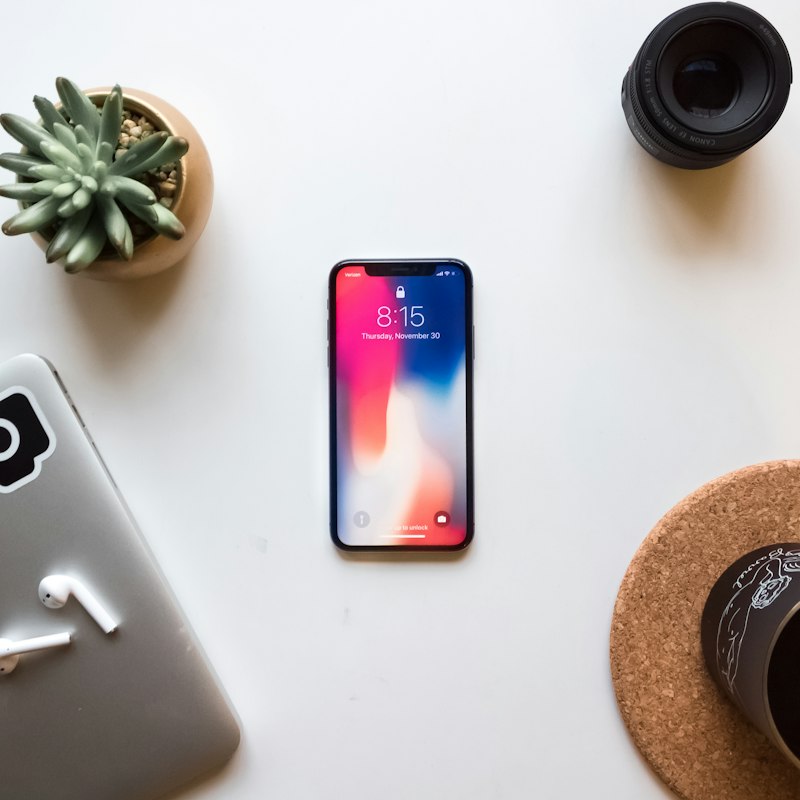
Marinios IPTV works on iPhone and iPad through player apps available on the App Store — here is how to set it up.
Apple's App Store has tighter restrictions than Android, which means a slightly different app selection for IPTV on iPhone and iPad. The good news: the two main options are excellent and setup takes under ten minutes.
Want to test on your iPhone first?
Request a free trial and run through the setup on your iOS device before committing to a plan.
Request a free trial →The best IPTV apps for iOS
IPTV Smarters Pro is available on the App Store and is the most popular cross-platform choice. It connects via Xtream Codes (URL + username + password) or M3U, loads your TV guide, and works reliably across iPhone and iPad.
GSE Smart IPTV is another strong option with more granular codec settings — useful if you hit playback issues on specific channels. Both are free with optional in-app purchases for extra features.
Setting up IPTV Smarters on iPhone
- Download IPTV Smarters Pro from the App Store.
- Open it and tap Add New User → Login with Xtream Codes API.
- Enter the server URL, username, and password from your provider.
- Tap Add User. Your channels and guide load automatically.
The first load takes a minute while the app caches everything. After that it opens in seconds.
Setting up GSE Smart IPTV on iPhone
- Download GSE Smart IPTV from the App Store.
- Go to Remote Playlists → +.
- Choose Xtream Code API and enter your credentials.
- Save and tap the playlist to load your channels.
Tips for iPhone / iPad viewing
- Use Wi-Fi at home for live sport — mobile data can fluctuate mid-stream.
- On iPad, lock the orientation before starting a match so the screen doesn't flip unexpectedly.
- Lower stream quality in the player settings if you're on a slower Wi-Fi connection — HD is usually enough for a phone screen anyway.