setup-guide
How to Set Up IPTV Smarters on Any Smart TV
IPTV Smarters is available on more Smart TV platforms than any other player. Here's how to install it and connect your subscription, whatever TV brand you have.
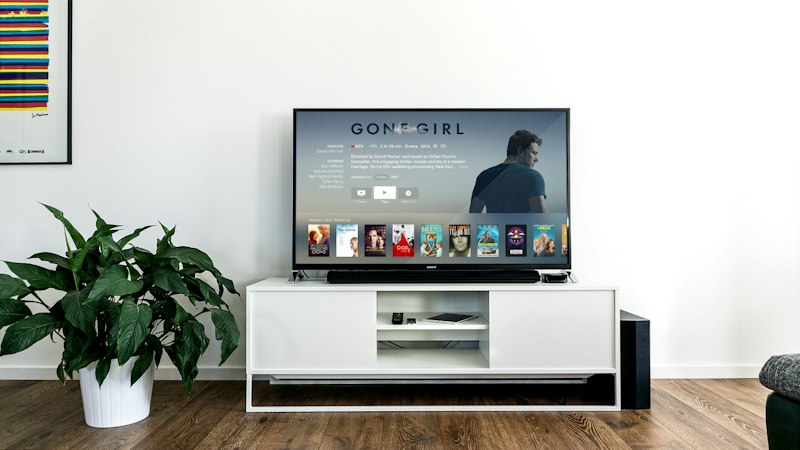
Marinios IPTV works with IPTV Smarters on almost any Smart TV — here is how to get it running on yours.
IPTV Smarters is free, supports Xtream Codes and M3U, and is available on more platforms than any other IPTV player. Here's how to get it running on your Smart TV, whatever brand it is.
Ready to test on your Smart TV?
Request a free trial and follow the steps above — we'll also help you find the right app for your specific TV model.
Request a free trial →Android TV / Google TV
The simplest path. Open the Google Play Store on your TV, search IPTV Smarters Pro, and install. Then:
- Open the app and tap Add New User → Login with Xtream Codes API.
- Enter your server URL, username, and password.
- Confirm — your channels load automatically.
Samsung Smart TV (Tizen)
- Open the Samsung Smart Hub and search for IPTV Smarters in the Apps section.
- If it's available in your region, install and follow the same Xtream Codes setup above.
- If it's not available: install it on a Fire Stick plugged into the TV's HDMI port instead — this is the most reliable alternative.
LG Smart TV (webOS)
- Open the LG Content Store and search for IPTV Smarters.
- On supported models it will appear — install and set up as above.
- If not available: same Fire Stick workaround as Samsung.
Tips for Smart TV use
- Typing credentials with a TV remote is slow. Use the phone-as-keyboard feature if your TV supports it, or pair a Bluetooth keyboard temporarily.
- Connect the TV via Ethernet if possible — Smart TV Wi-Fi varies greatly in quality.
- If channels load slowly, go to Settings in the app and switch between hardware and software decoder.